Articles by "tips"
Showing posts with label tips. Show all posts


How do I get a rank fast on Fiverr in 2023?

Ranking your gigs on Fiverr can be a challenging task, but there are some steps you can take to increase your visibility and chances of getting more orders. Here are some tips to help you rank your gigs on Fiverr:

Optimize your gig title, tags, and description: Your gig title, tags, and description are critical factors in determining where your gig ranks in Fiverr search results. Ensure that your gig title is clear and concise, and use relevant keywords in your tags and description.

Offer a competitive price: Pricing is an important factor in Fiverr's ranking algorithm. Offering a competitive price for your services can help increase your chances of appearing higher in search results.

Promote your gig outside of Fiverr: Fiverr's algorithm takes into account external traffic sources, such as social media, when ranking gigs. Promoting your gig on social media or other platforms can drive more traffic to your gig, increasing your chances of getting orders and improving your Fiverr search ranking.

Respond to buyer requests: Responding to buyer requests can help you get more orders and improve your Fiverr search ranking. Fiverr's algorithm favors sellers who are responsive and engaged with their buyers.

Deliver high-quality work: Delivering high-quality work is essential for building a positive reputation on Fiverr. Positive reviews from satisfied customers can help improve your Fiverr search ranking and attract more orders.

Remember that ranking your gig on Fiverr takes time and effort. By following these tips and consistently delivering high-quality work, you can increase your visibility and improve your chances of getting more orders.


How To Fix/Repair Corrupted USB or SD Card

Your USB and SD card Before the Process


Step 1:

Click on Windows button and search cmd on search bar. Click Right button of mouse and click on Run as administrator.


Step 2:

Write diskpart and press Enter.


Step 3:

Write list disk and press Enter.


Step 4:

Select disk who you want to format so write select disk 2 . (2 is the number of disk. You write your disk number carefully) and press Enter.


Step 5:

Write clean and press Enter.


Step 6:

Write creat partition primary and press Enter.


Step 7:

Write format fs=fat32 and press Enter. Then the formatting is start so wait for complete the process 100%.


Step 8:

After complete 100%. Write exit and press Enter

Your USB and SD card After the Process


Thanks for Read. 

How to Recover Deleted Files From Hard Drive With Simple Steps

Step 1. 

Download Wondershare Data Rcovery on your computer or laptop and launch it

Step 2. 

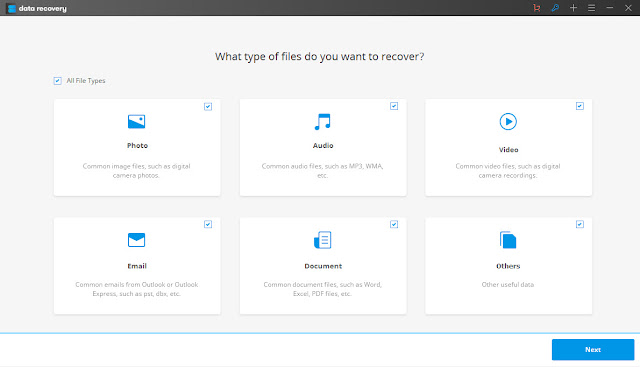
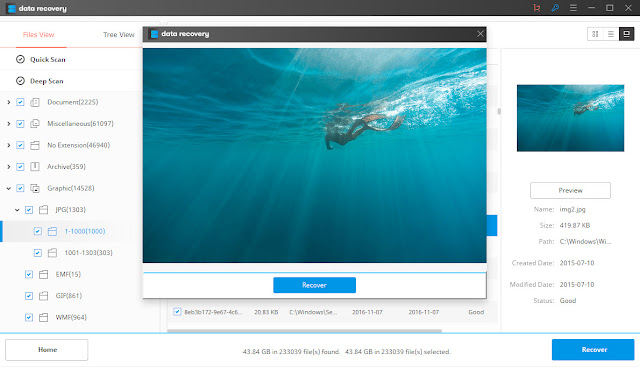
Select the type of files you want to recover and begin to scan for deleted folders.


Step 3. 

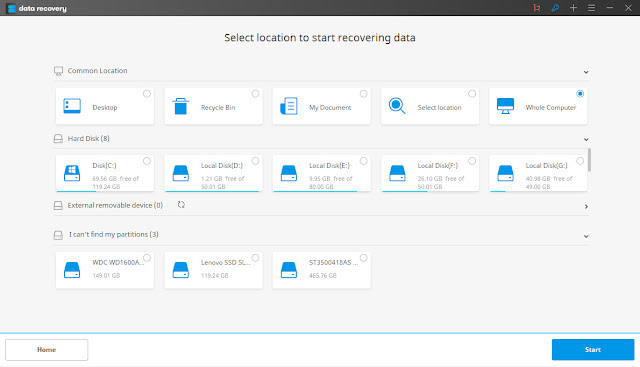
Select the location where you lost your folders or files from, click "Start" to get your lost files.


Step 4. 

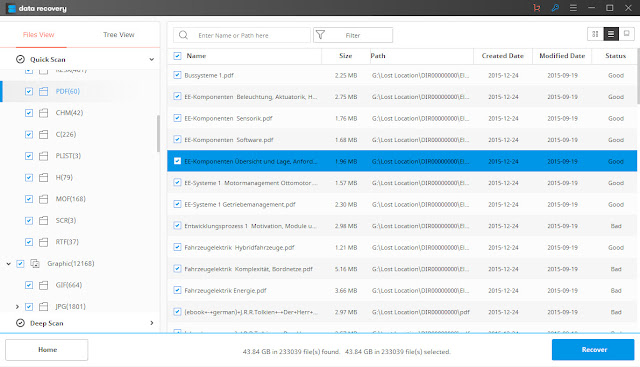
After the scan, preview and check the recoverable files and get your lost folders back.


Step 5. 

With the option of Deep Scan, it will find more files by deeply searching. While it will take more time.


The one thing you need to remember is: Don't save the recovered files to the space where you lost your files previously, this could interrupt the process and permanently delete the data.


Computer is a basic think in the life of every person. During use of computer or laptop he shows different behavior as compare to usual. He work very slowly and stop during the work. Because the dump files create on hard disk C. Dump files create due to virus and other corrupt files.